
How to Record on Virtual DJ: A Beginner’s Guide | DJ Will Gill
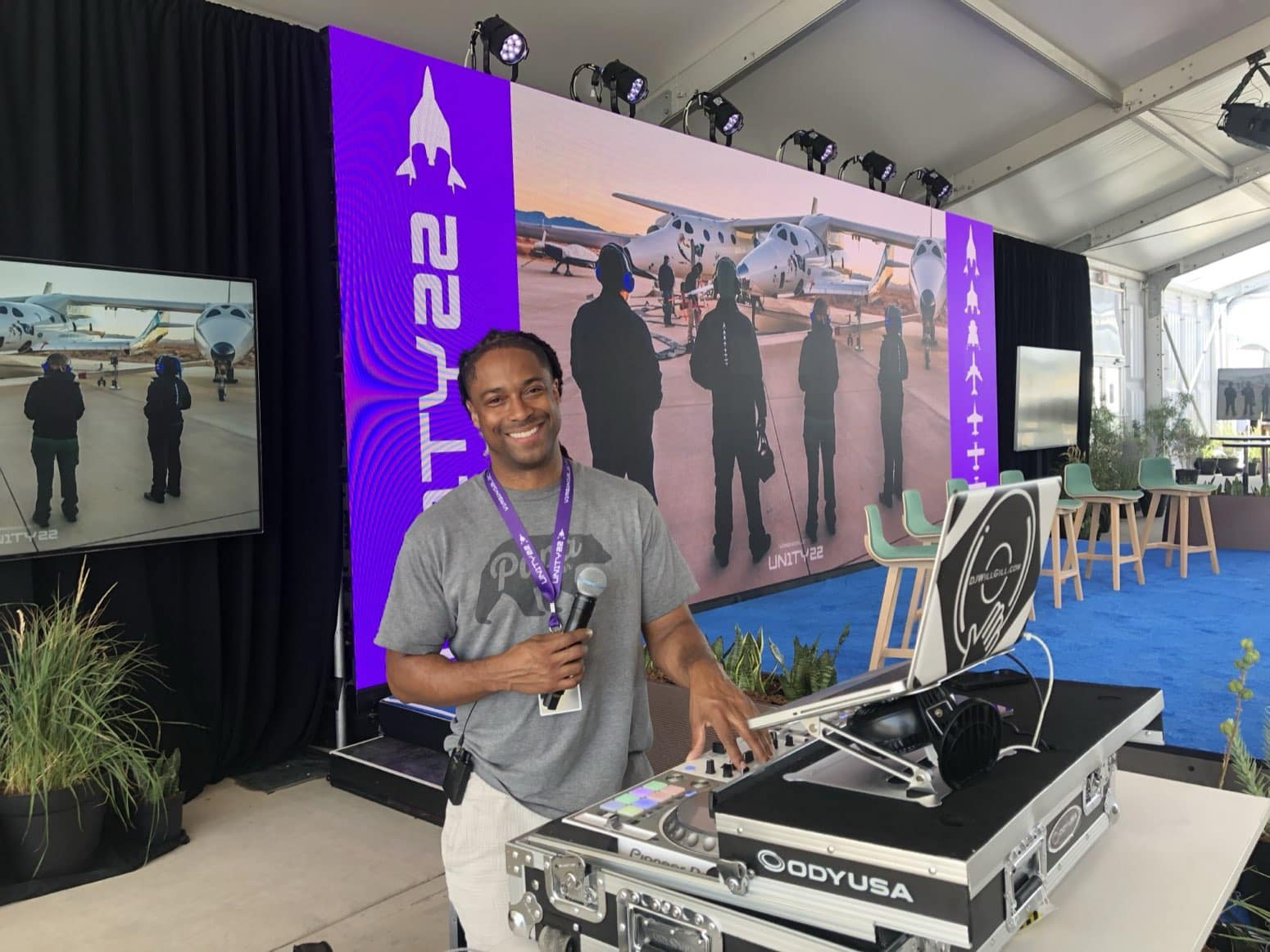
Virtual DJ is one of the most accessible DJ software platforms available, and its built-in recording feature is one of the most useful tools a developing DJ can use. Recording your practice sessions and live mixes is how you identify what you are doing well, what needs work, and whether the transitions and energy you hear through your headphones translate the way you expect when you listen back critically on speakers.
This guide walks through the complete process of how to record on Virtual DJ from initial setup and audio configuration to the actual recording workflow and the quality decisions that affect what your finished mix sounds like. It is written specifically for beginners, but includes the specific detail that intermediate DJs often need when they are not getting the results they expect from recordings they have already attempted.
Recording a mix? Start with a set that flows.
Introducing TheAIDJ.com
A clean recording starts with the right track order. Tell AIDJ the mood, preview how the songs blend, and export a playlist ready to record. The easy way to prep a mix worth keeping.
“Every professional DJ I know records their practice sessions. You cannot hear yourself objectively while you are performing. The recording tells you the truth about your transitions in a way that your headphones never will.”
What Virtual DJ’s Recording Feature Actually Captures
Before walking through the steps, it is worth understanding what Virtual DJ’s recording function actually records because this affects how you interpret your output and troubleshoot any quality issues that arise.
Virtual DJ records the master output signal the mixed audio that would go to your main speakers or PA system. This means it captures exactly what your audience hears: your blended tracks, your applied EQ adjustments, your effects, your fades, and your transitions. It does not separately capture individual deck channels; it records the final mixed output as a stereo file.
This is important to understand because it means your level management during the mix directly affects recording quality. If you are pushing your master output into the red during the mix, your recording will contain that clipping. If your master output is set too low, your recording will be quiet and will require post-processing normalization to reach listenable levels. Setting your levels correctly before you start is not optional it is part of the recording process.
Step 1: Verify Your Audio Setup Before Touching the Record Button
The single most common reason beginners end up with poor-quality or empty recordings is that they press Record before verifying their audio configuration. Virtual DJ needs to know which audio interface or sound card to use as its input/output device, and this setting needs to be correct before recording will capture anything meaningful.
Go to Settings (the gear icon in the top bar of the Virtual DJ interface) and click on the Audio tab. You will see fields for your sound card/audio interface selection, the master output device, and the headphone output. If you are using a DJ controller with a built-in audio interface which is the most common setup for beginners Virtual DJ should detect it automatically, but it is worth confirming the correct device is selected rather than assuming.
Play a track through each deck and verify that you can hear it through your speakers or headphones before proceeding. If you hear nothing, or if you hear through the wrong output, the audio routing needs to be corrected before you attempt to record. A recording of silence is the most avoidable mistake in this entire process.
Step 2: Configure Recording Settings Format, Bitrate, and Save Location
Virtual DJ lets you set your recording format and quality before you start. Access these settings by clicking the Record panel button it appears as a circular record icon in the interface, typically visible in the browser section or accessible from the toolbar depending on your Virtual DJ version and skin layout. When you open the recording panel, you will see options for format and output path.
For recording format, the two meaningful choices are MP3 and WAV. WAV is an uncompressed audio format that produces the highest quality recording and the largest file size a one-hour mix recorded as WAV will be approximately 600MB-700MB. MP3 is a compressed format that produces smaller files with some quality reduction that is generally not audible at high bitrates. For practice recordings and informal sharing, a 320kbps MP3 recording is excellent quality. For a recording you intend to publish as a professional-quality demo mix, WAV gives you a pristine source file that you can later convert or master without any generation loss from multiple compressions.
Set your save location before you start recording. Choose a dedicated folder that you use only for DJ recordings a clearly named folder that is easy to find when you want to review a mix. Trying to find a recording file that Virtual DJ saved to a default system location after the fact is a frustrating and avoidable experience.
Step 3: Load Your Tracks and Set Your Starting Levels
Load the tracks you plan to mix into Virtual DJ’s decks by dragging them from the browser panel, double-clicking them, or using the load buttons associated with each deck. Take a moment to familiarize yourself with the tracks you are working with before you begin recording know their BPMs, their key phrases, and where the transitions you are planning to execute will occur.
Before pressing Record, set your initial levels. Play the first track you will start with and bring up the master output fader to a position where the track plays at a healthy level the master output meter should be registering consistently in the green, reaching into the yellow on peaks but not into the red. If you are peaking into the red during the intro of your first track before you have even started mixing, the rest of the mix will be worse. Set a level you can maintain across the full duration of the set.
Step 4: Start the Recording and Begin Your Mix
With everything configured and your starting levels set, click the Record button in the recording panel. Virtual DJ will display a recording timer showing how long the current recording has been running. This is your confirmation that recording is active before you play a single note of your mix, verify that the timer is incrementing.
Begin your mix naturally. The recording captures in real time from the moment you press Record, so there is no buffer or delay everything that comes through the master output from that point forward is in the recording. If you want a clean start to the recording, some DJs prefer to let a few seconds of the first track play before beginning their mix, giving a brief lead-in before the mix action starts. This is a stylistic choice, not a technical requirement.
Step 5: Monitor Levels Throughout the Mix
While recording, keep one eye on the master output meters in Virtual DJ’s interface. The goal is to keep your master consistently in the green range (-12dB to -6dB relative to 0dBFS) with peaks reaching into the yellow (-6dB to 0dBFS) on the loudest transients, but never consistently hitting 0dBFS or above.
Clipping the distortion that occurs when your signal exceeds the maximum digital level cannot be fixed in post-production. Once a peak has clipped in a recording, the harmonic distortion is baked into the audio file. The only fix is to not clip during the recording. If you notice your levels consistently hitting the red during a mix, bring your master output fader down slightly rather than continuing to record with clipping levels.
The temptation for beginners is to run levels as loud as possible on the assumption that louder sounds better. In digital recording, this is incorrect headroom in your recording allows for better post-processing, and a clean recording at moderate levels sounds better than a hot recording with clipping, even before any mastering is applied. According to the Audio Engineering Society’s standards for digital audio, a target recording level of -18dBFS RMS with peaks no higher than -6dBFS provides optimal headroom for most post-processing workflows (AES Journal, Technical Standards, 2022).
Before You Press Record: The Pre-Recording Checklist
7 Things to Verify Before Every Virtual DJ Recording Session
| 1 | Audio device confirmed | Settings > Audio shows the correct controller or interface selected as your master output device. Play a track and confirm you hear it through the correct output before proceeding. |
| 2 | Format and bitrate set | Recording panel shows your preferred format: WAV for archival/demo quality, 320kbps MP3 for practice and sharing. You cannot change this mid-recording without stopping and starting a new file. |
| 3 | Save location is set | You have confirmed the output file path in the recording panel and know exactly where your mix will be saved. You have enough disk space for the recording duration you plan. |
| 4 | Levels tested and set | You have played a test section of your opening track and confirmed the master output meter is reading in the healthy range — green to occasional yellow peaks, not consistently red. |
| 5 | Tracks are loaded and familiar | You know the tracks you plan to mix. Unfamiliarity with your music is one of the main causes of poor transitions in recordings, and you cannot undo a bad mix once it is captured. |
| 6 | Recording timer is active | After pressing Record, confirm the timer in the recording panel is incrementing before you begin your mix. A non-incrementing timer means the recording is not active. |
| 7 | Distractions minimized | Close unnecessary applications on your laptop before recording. Background processes that compete for CPU resources can cause audio dropouts and artifacts in your recording, particularly on less powerful machines. |
Step 6: Stop the Recording and Review Your Mix
When your mix is complete, click the Stop button in the recording panel. Virtual DJ will finalize and save your recording file to the path you specified. The file is complete and ready to review as soon as the save completes there is no extended processing or rendering step.
Listening back critically to a recording of your own mix is uncomfortable at first and then invaluable. Play the recording through speakers, not headphones speakers reveal level inconsistencies, frequency buildup, and tonal imbalances that headphones often mask. Listen specifically for: transition timing (did the beats actually line up when you thought they did?), level consistency (do the track volumes feel even throughout the mix, or do some tracks hit noticeably louder or quieter than others?), and clipping (any crunchy, distorted peaks are clipping and indicate your levels were too hot in that section).
Take notes during your listen-back. The specific moments where you want to improve are what you practice until your next recording session. This disciplined cycle of practice, record, listen back, identify weaknesses, repeat is how DJs improve their technical execution far faster than practice without recording.
Step 7: What to Do With Your Recording
A recording you are satisfied with has several practical uses depending on your goals as a DJ. For aspiring professional event DJs, a well-executed recorded mix is your primary audition tool it is what booking agents, event planners, and venues listen to when they are considering hiring you. The expectation at the corporate event level is a mix that is technically clean, musically appropriate for the audience the planner serves, and approximately 15-30 minutes in duration for an initial audition submission.
For sharing publicly on platforms like SoundCloud, Mixcloud, or YouTube, understand that posting mixes that include commercially released music creates copyright exposure on those platforms. Mixcloud has licensing agreements with most major PROs that make it the most appropriate platform for public DJ mix sharing. SoundCloud and YouTube will frequently detect and mute or restrict tracks in mixes due to automated content matching systems.
For your own development, store your recordings in a dated folder structure “YYYY-MM-DD Mix Practice” naming makes it easy to track your progress over time. Listening back to a recording you made six months ago against a current one is one of the most motivating experiences available to a developing DJ. The improvement is usually dramatic and obvious in ways that are invisible when you are in the day-to-day practice grind.

DJ Will Gill
Will Gill is a Forbes Next 1000 honoree and WSJ-ranked #1 Corporate DJ and Emcee with 2,520+ five-star Google reviews. He has performed at 600+ corporate events and has mentored aspiring DJs looking to break into the professional event entertainment market.
Learn more and check availability for your next event.
Corporate Events Performed
Five-Star Google Reviews
WSJ-Ranked Corporate DJ
Frequently Asked Questions
What does Virtual DJ's recording feature actually capture?
The master output, meaning exactly what the audience hears: your blended tracks, EQ moves, effects, fades and transitions, saved as a single stereo file. It does not record the individual decks separately, which is why level and mix decisions show up in the recording exactly as you made them.
What should I check before pressing record?
Verify your audio setup first, then set the recording format, bitrate and save location, load your tracks and set starting levels. The page treats this pre-recording checklist as the difference between a usable file and a session you have to redo.
Why record practice sessions at all?
Because you cannot hear yourself objectively while performing. The recording tells you the truth about your transitions and energy in a way headphones never will, and listening back critically on speakers is how you find what needs work.
How do I keep the recording from clipping or sounding thin?
Set your starting levels before you begin and monitor the levels throughout the mix rather than only at the start. The guide walks through watching your master output during the set so the finished file matches what you intended.
What do I do after I stop the recording?
Review the mix critically, ideally on speakers rather than headphones, and note the transitions that did not translate. That review step is the point of recording in the first place.